Welcome to the new VisCorner Provider Dashboard.
This guide is designed for both existing and new service providers who want to understand how the new dashboard works and how to get fully set up. Whether you’re activating your migrated account, creating profiles, managing requests, or learning the new credits system, this walkthrough will help you navigate everything step-by-step.
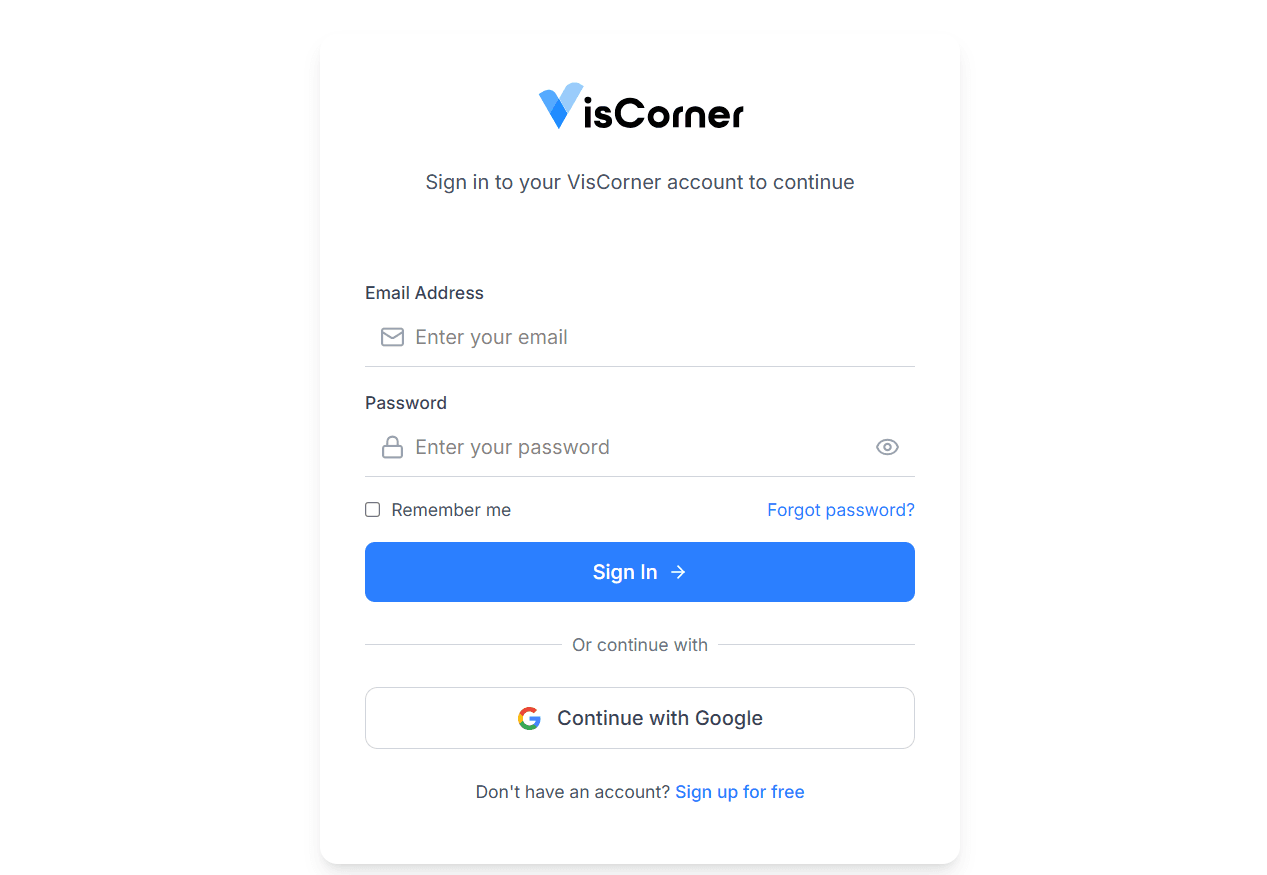
If you’re an existing Service Provider on VisCorner, you should have already received a link to Reset Your Password. If that’s the case, go ahead to login with your email and your new password.
If you don’t have an account on VisCorner before now, do not try to log in — go to “Sign up”
If you didn’t receive the password reset link or unsure if you got it, use “Forgot password” to continue.
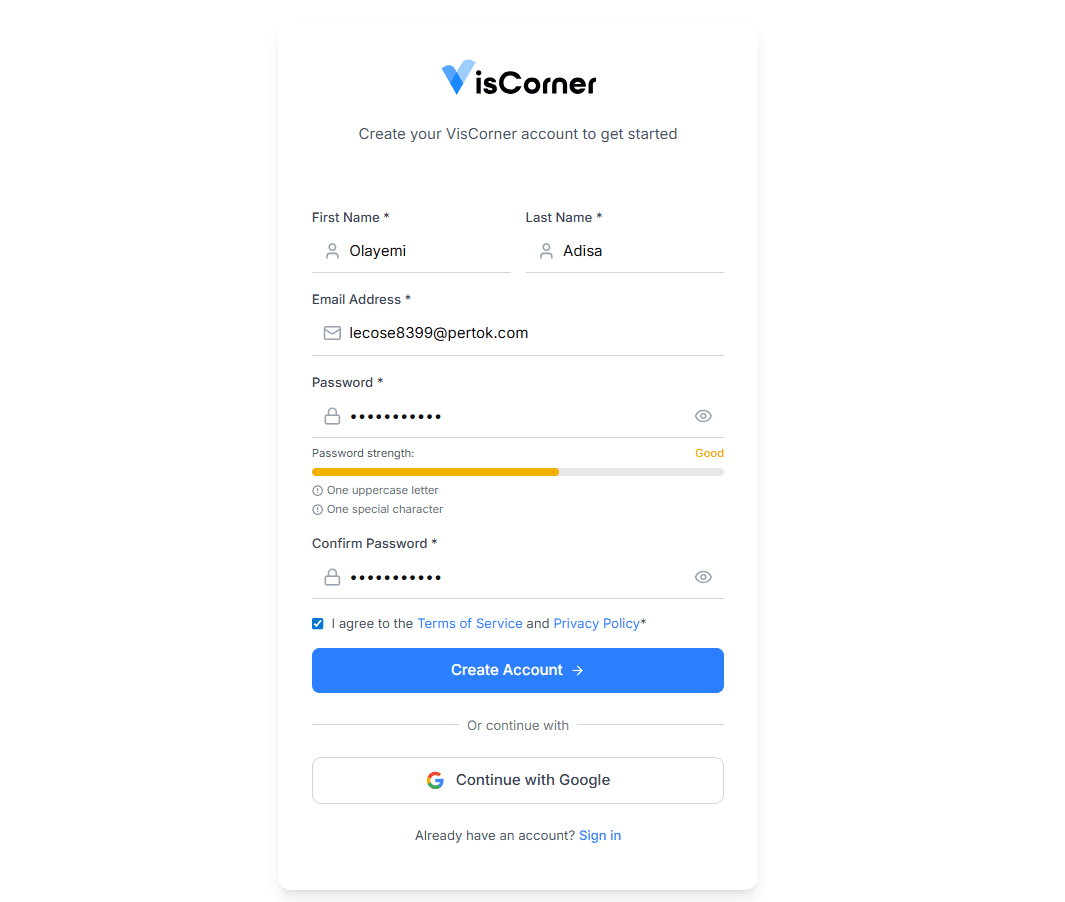
Complete the account creation form, and get started in less than a minute. Use a valid email that— this will be used for notifications and requests
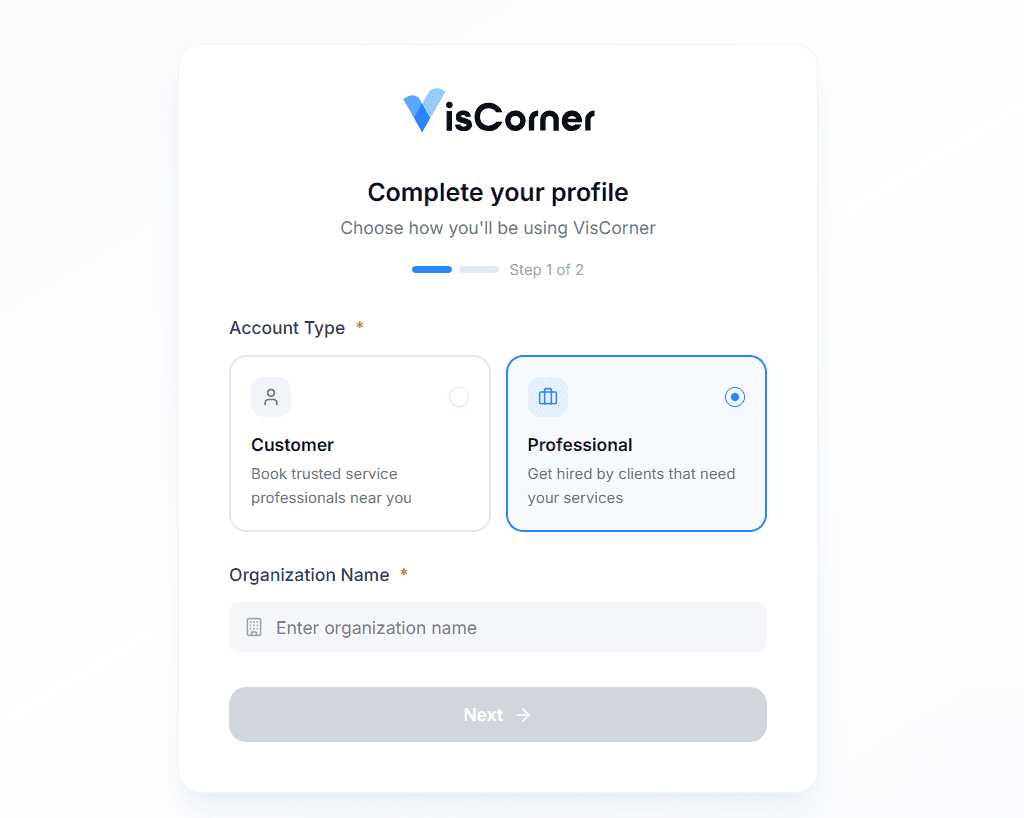
Select the ‘Professional’ account type, which is for service providers.
Then, enter your Organization Name (your business name, as shown on your business registration documents if you’re a registered business). Your organization name is what customers will see when interacting with you on VisCorner.
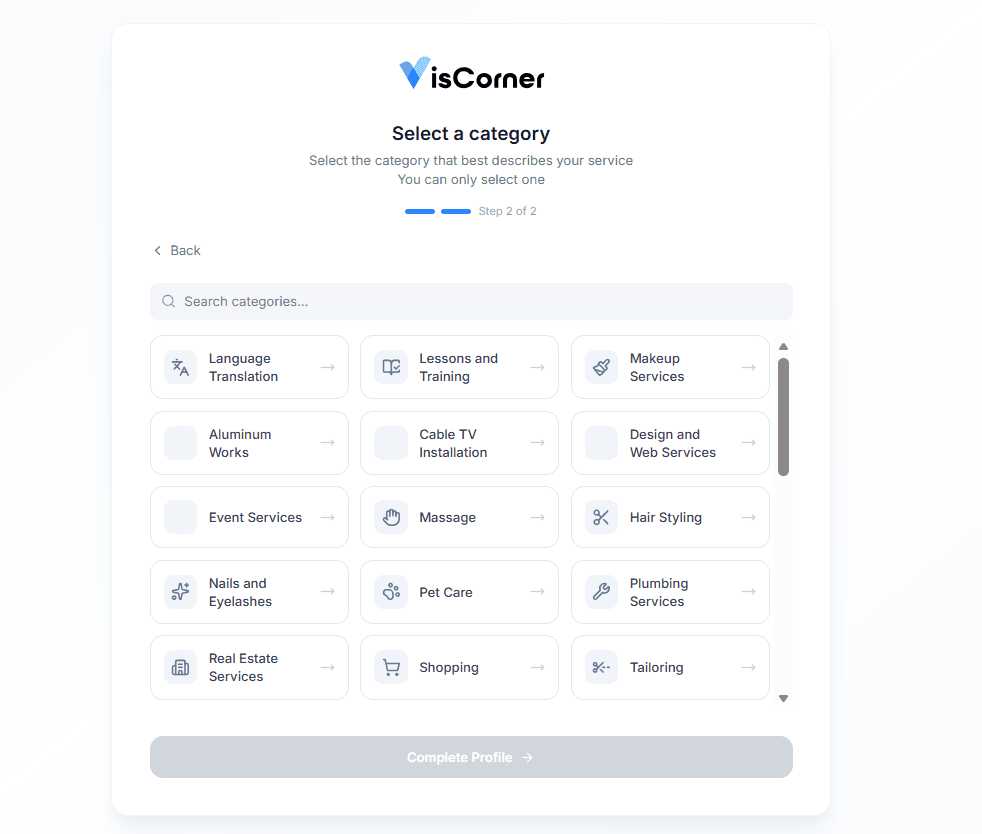
This is a list of service categories (e.g., Plumbing, Cleaning, Photography, etc.) to choose from. At this point, you can only choose one. Use search bar or scroll down to find the service you offer.
If you offer more than one service category, you will be able to add it after completing your account setup.
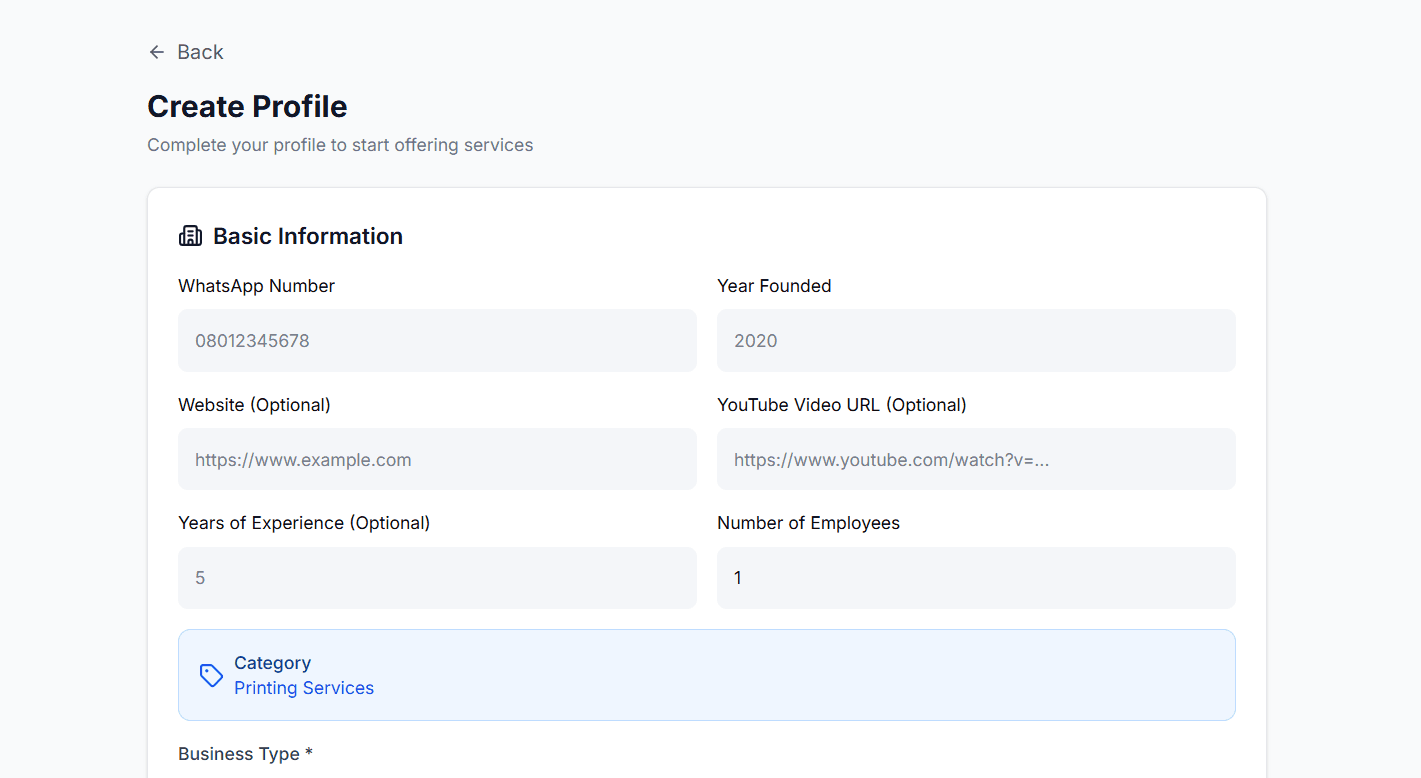
Continue to provide more details about your business. Scroll down to complete the form, so your account can be reviewed and verified.
This is a critical step — without a profile, you won’t receive jobs. Be clear and professional in your description. You can create multiple profiles if you offer different services
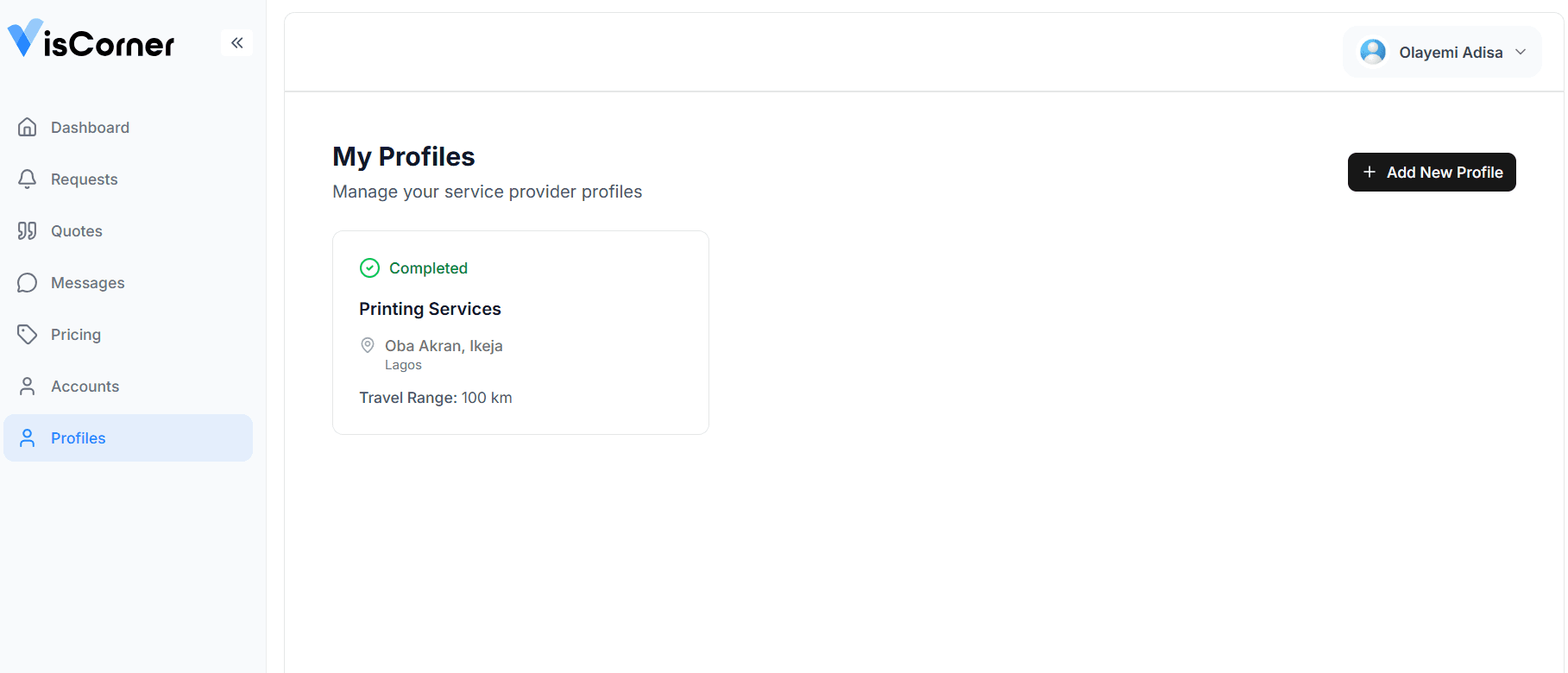
You can edit your profile directly from here, and also add a new profile. Each profile represent a service category. If you offer multiple services from different categories, you should add new profiles here to indicate that.
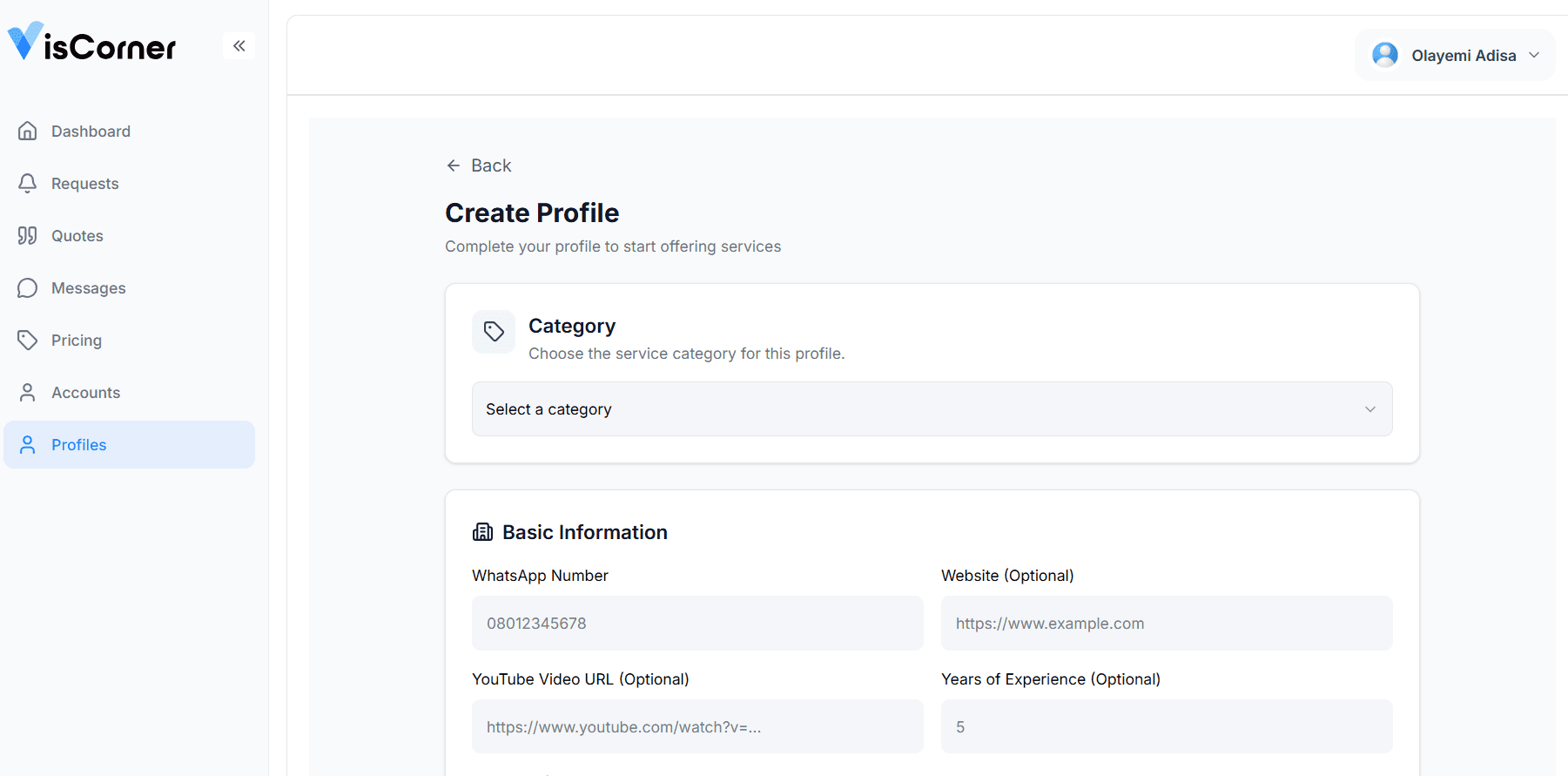
If you offer multiple services from different categories, you should add new profiles here to indicate that.
Your main dashboard is where you get an overview of your profiles and account activity, including, number of jobs posted by customers (Requests) that are pending your response, how many Quotes you’ve sent, and more.
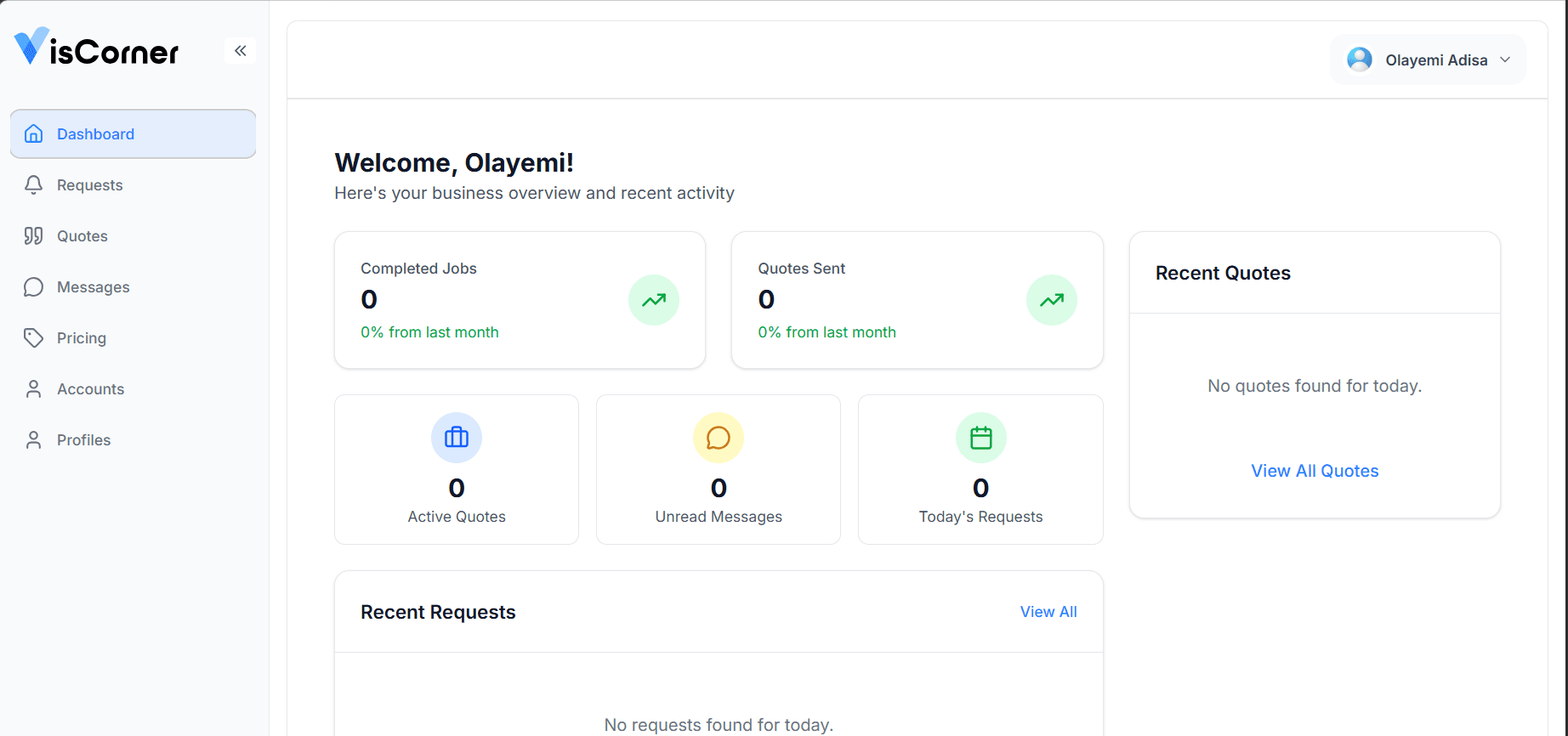
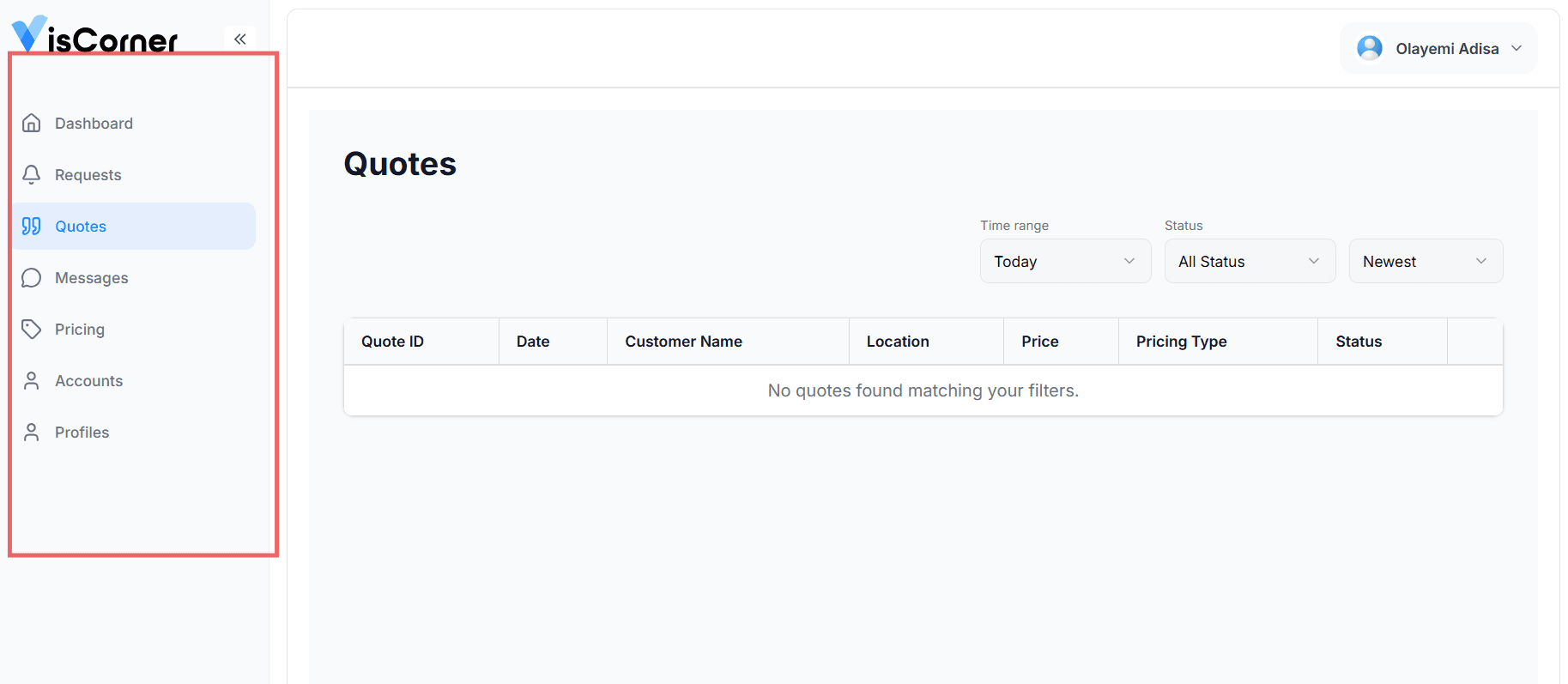
Navigate to the Sidebar on your left to open your Requests, Quotes, Messages and more.
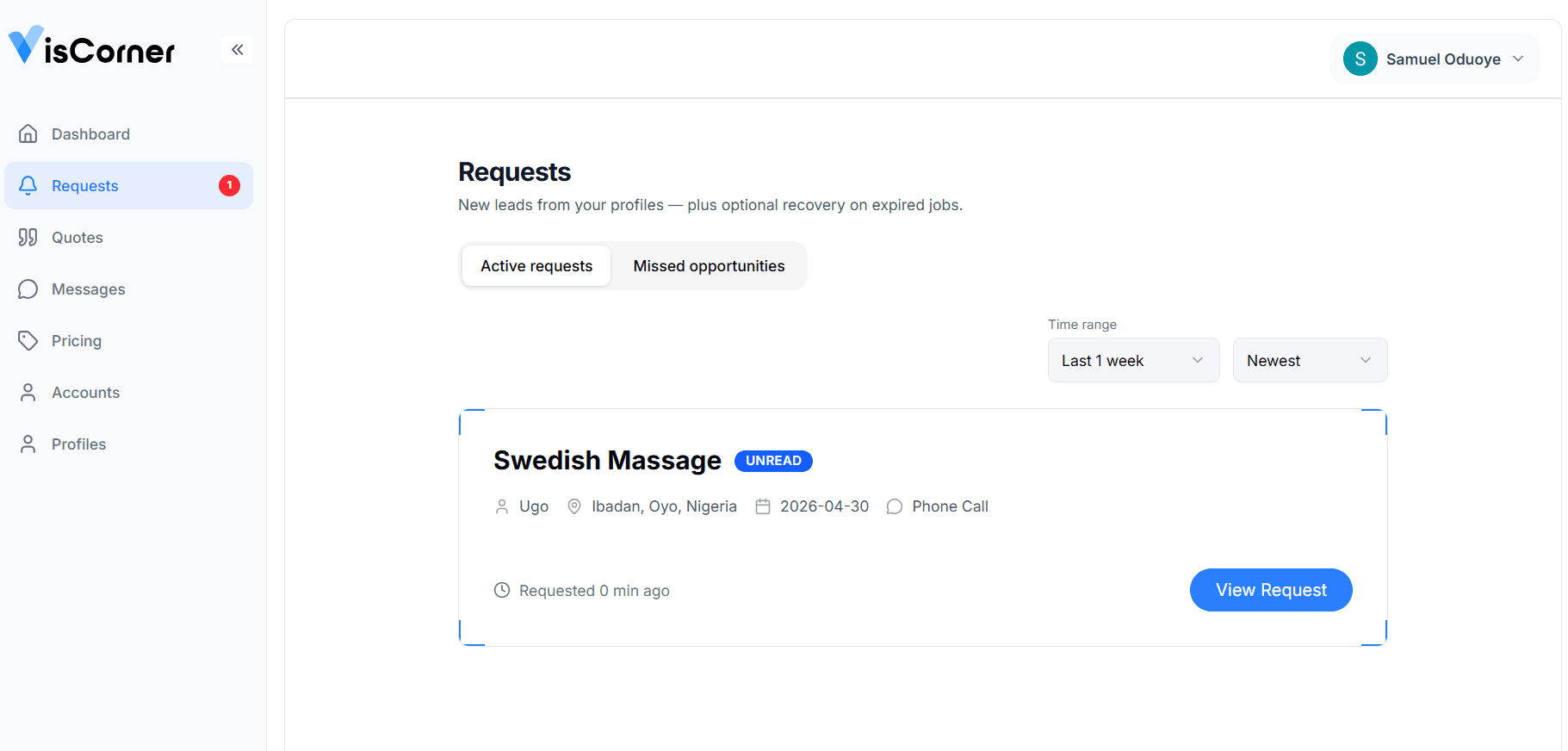
Requests are displayed as they come in, with filters allowing you to see high-priority requests quickly.
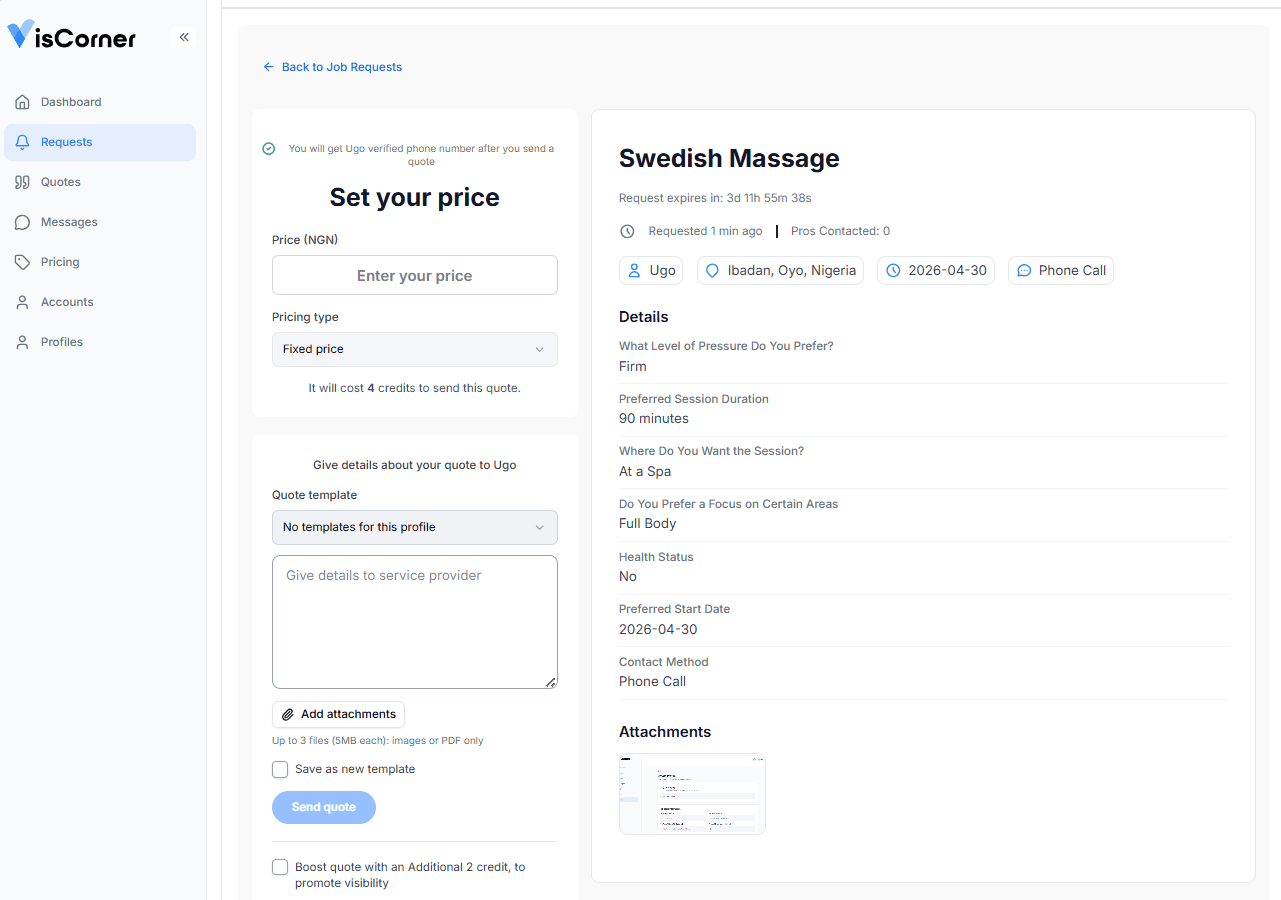
Our new quote dashboard also gives you a 360° view of the information you need to close the deal fast.
This is the home for your subscription and credit balance. Choose a plan (e.g., Starter, Growth, Pro). Monitor your credit balance. Upgrade or downgrade to a different plan with ease.
Important notes:
You need credits to send quotes in response to requests.
Different services may use different credit amounts.
Running out of credits means you cannot respond to requests until you renew your plan or buy top-up credits.
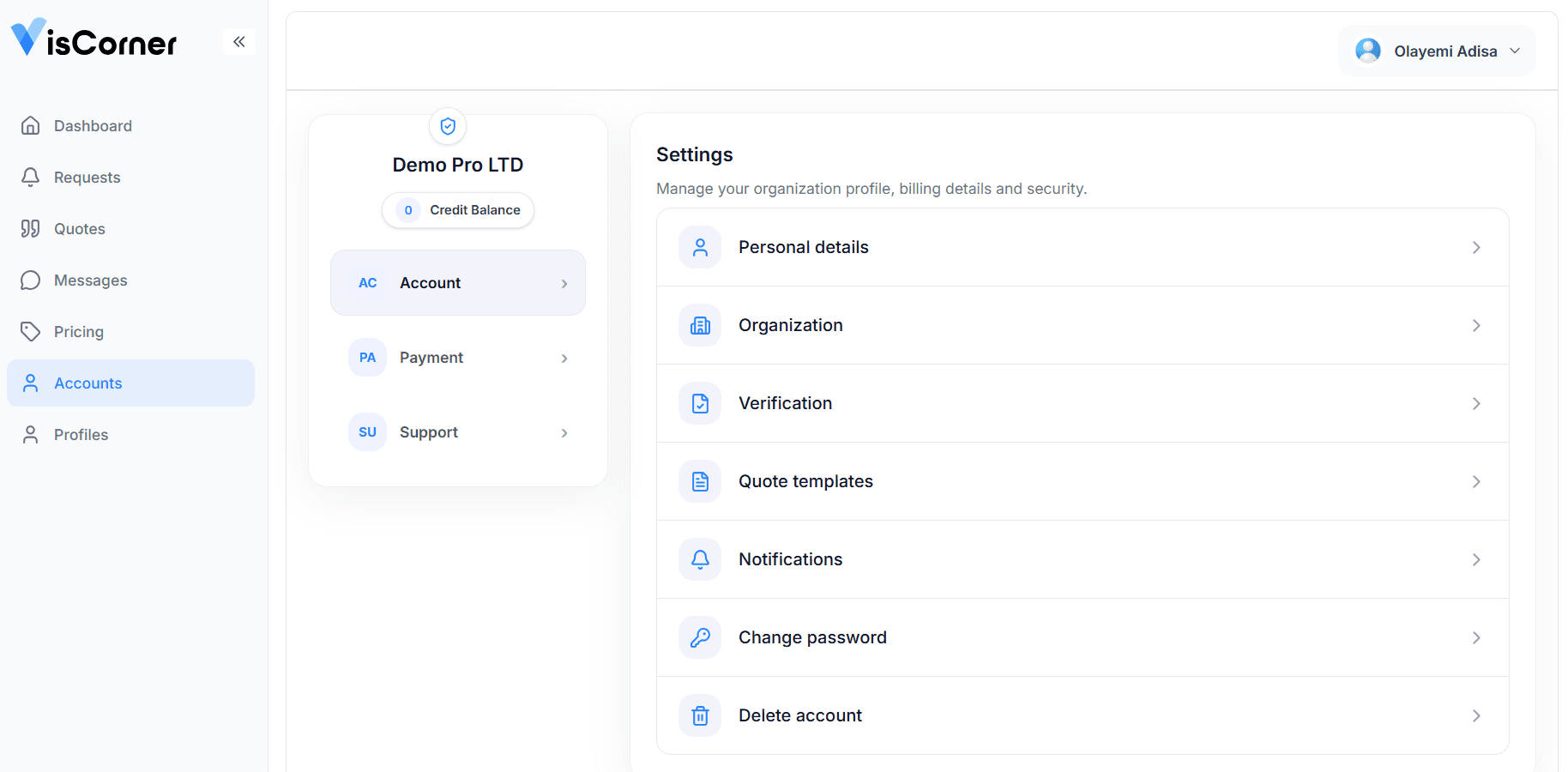
Account page is where you can update your Personal details, Organization info, Password, and more.
You can also view your account Verification status and your credits directly within the Accounts menu.